
BSS Landing Page Builder
Created on: Oct 19, 2026
PRE-REQUISITES
-
The plugin requires you to install the BSS Core plugin first.
INSTALLATION
-
Go to the Order Details Page and Download plugin package
-
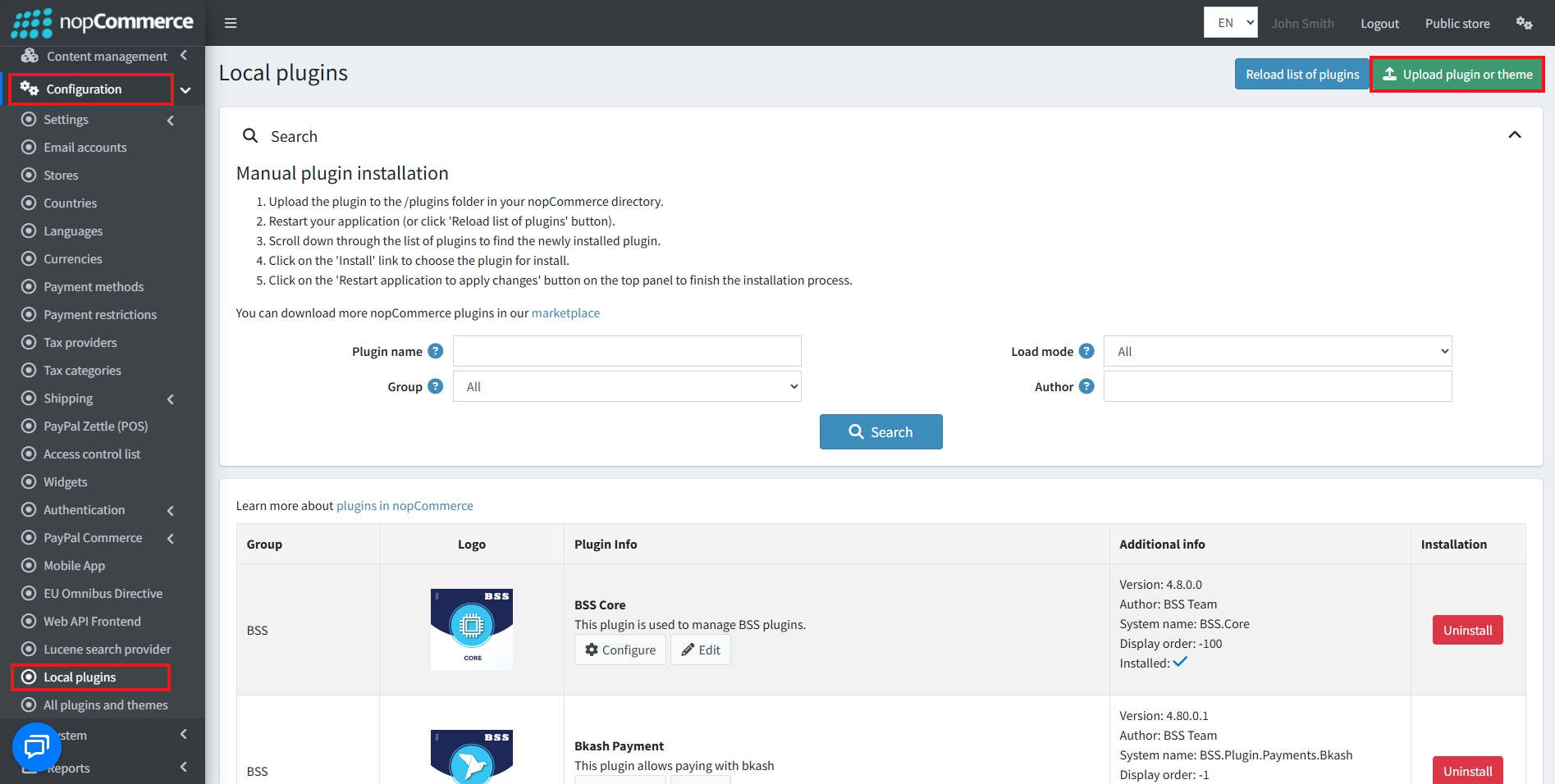
Go to Administration → Configuration → Local plugins
-
Within the bundle, you get all the required files, including BSS.Core
-
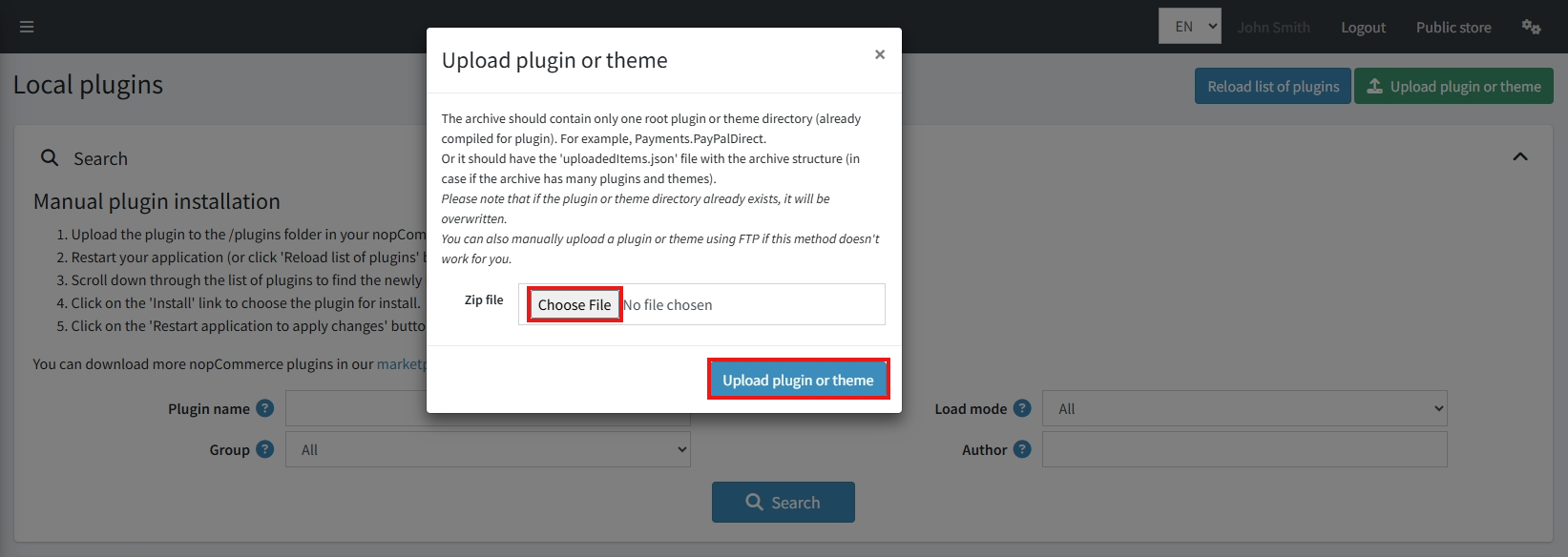
Upload the zip files using the ‘Upload plugin or theme’ button
-
After uploading, install the ‘BSS Core’ Plugin first.
-
Then scroll down or write the name of the plugin in the search bar to find and install ‘BSS Landing Page & Order Source Tracking’
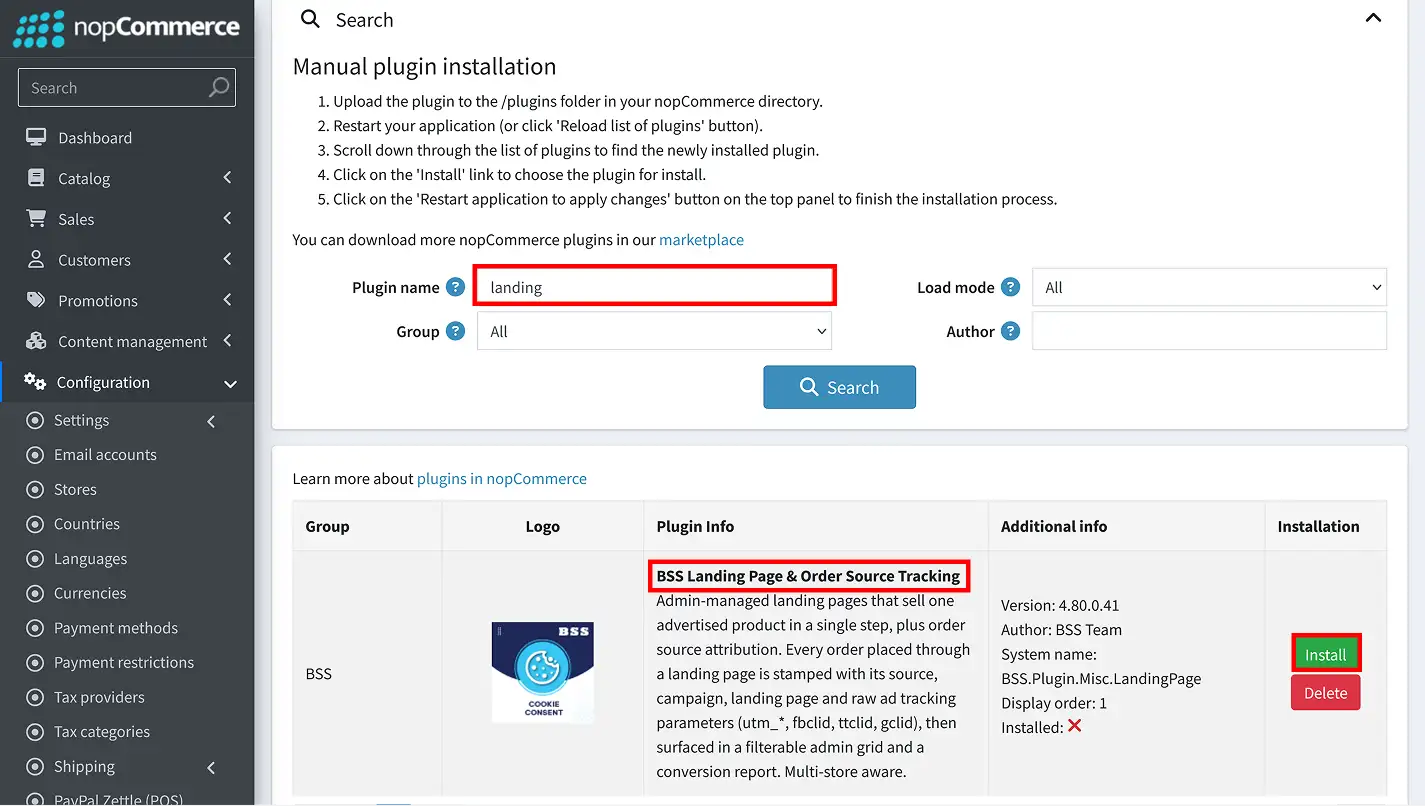
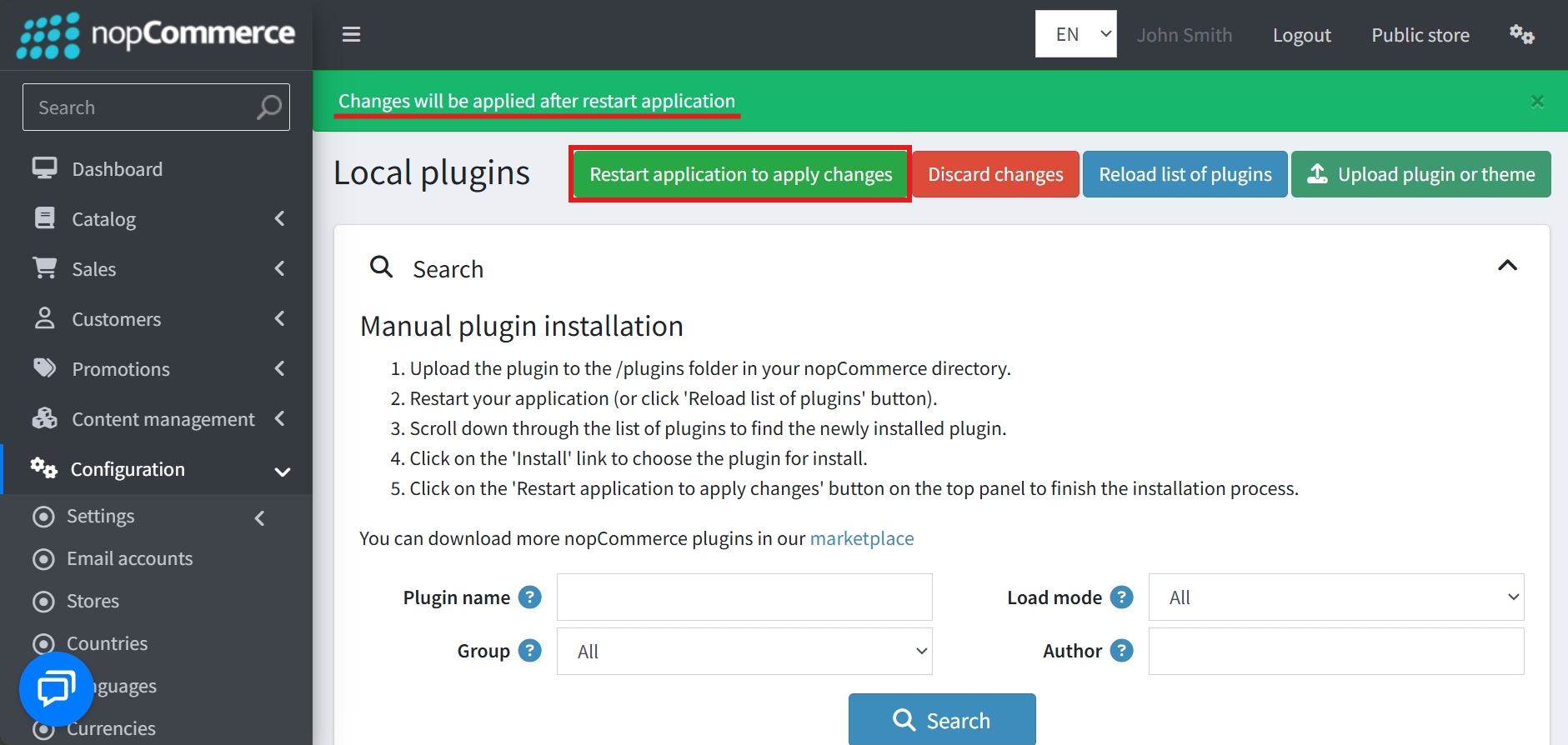
- To make the plugins functional, restart the application
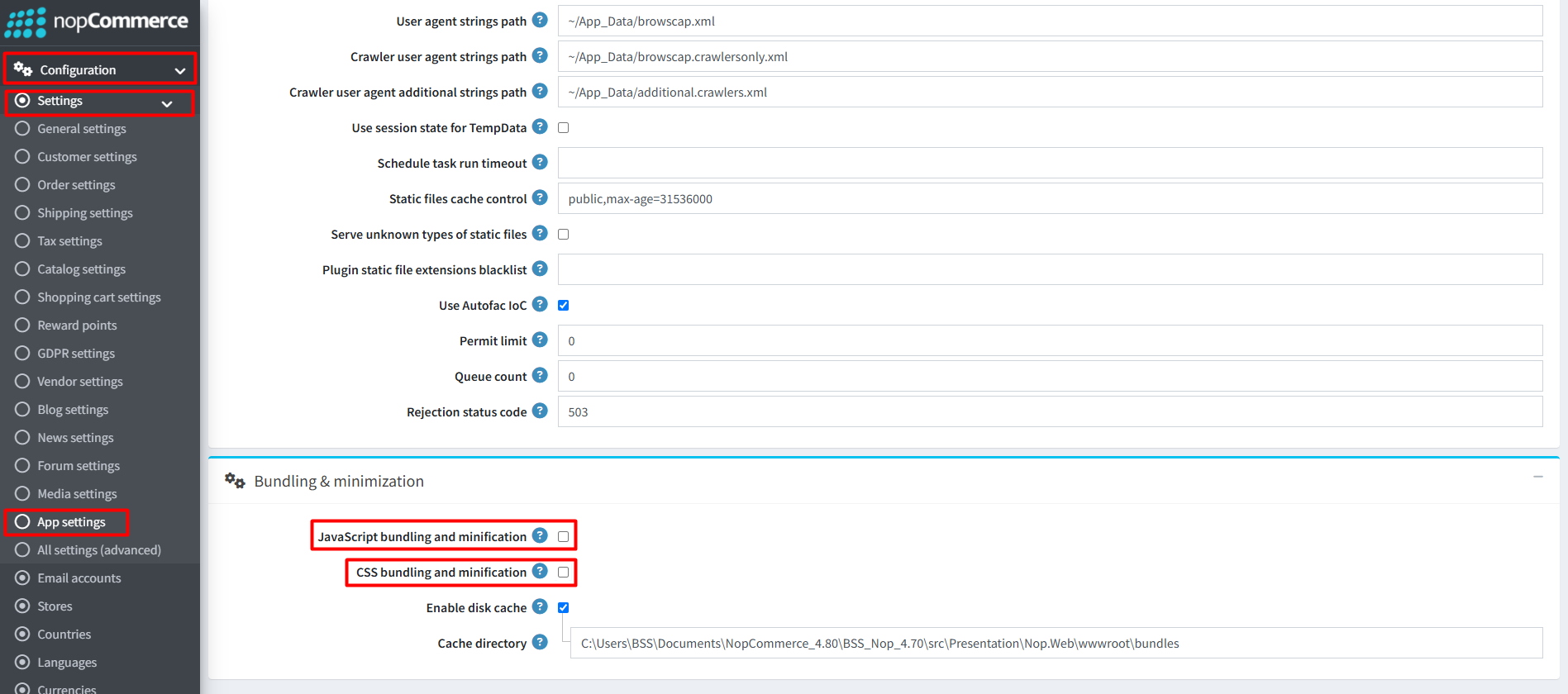
Recommendation: Go to > App Settings. If you find JavaScript bundling and minification, CSS bundling and minification are checked, then uncheck these two options and disable them.
CONFIGURE
-
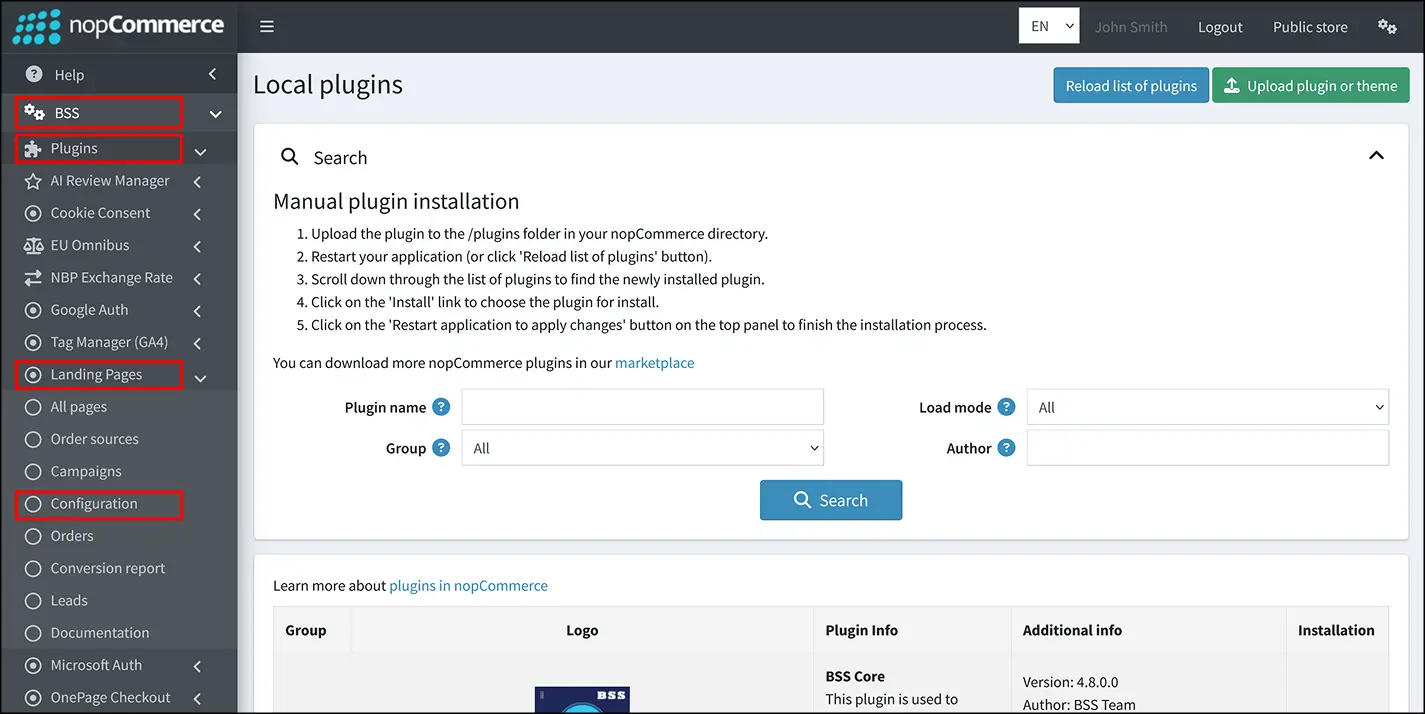
Go to Admin → BSS → Plugins → Landing Pages → Configuration
-
Enter the License string and save it. Then clear cache.

-
Then again go to BSS → Plugins → Landing Pages → Configuration to set the configuration.
-
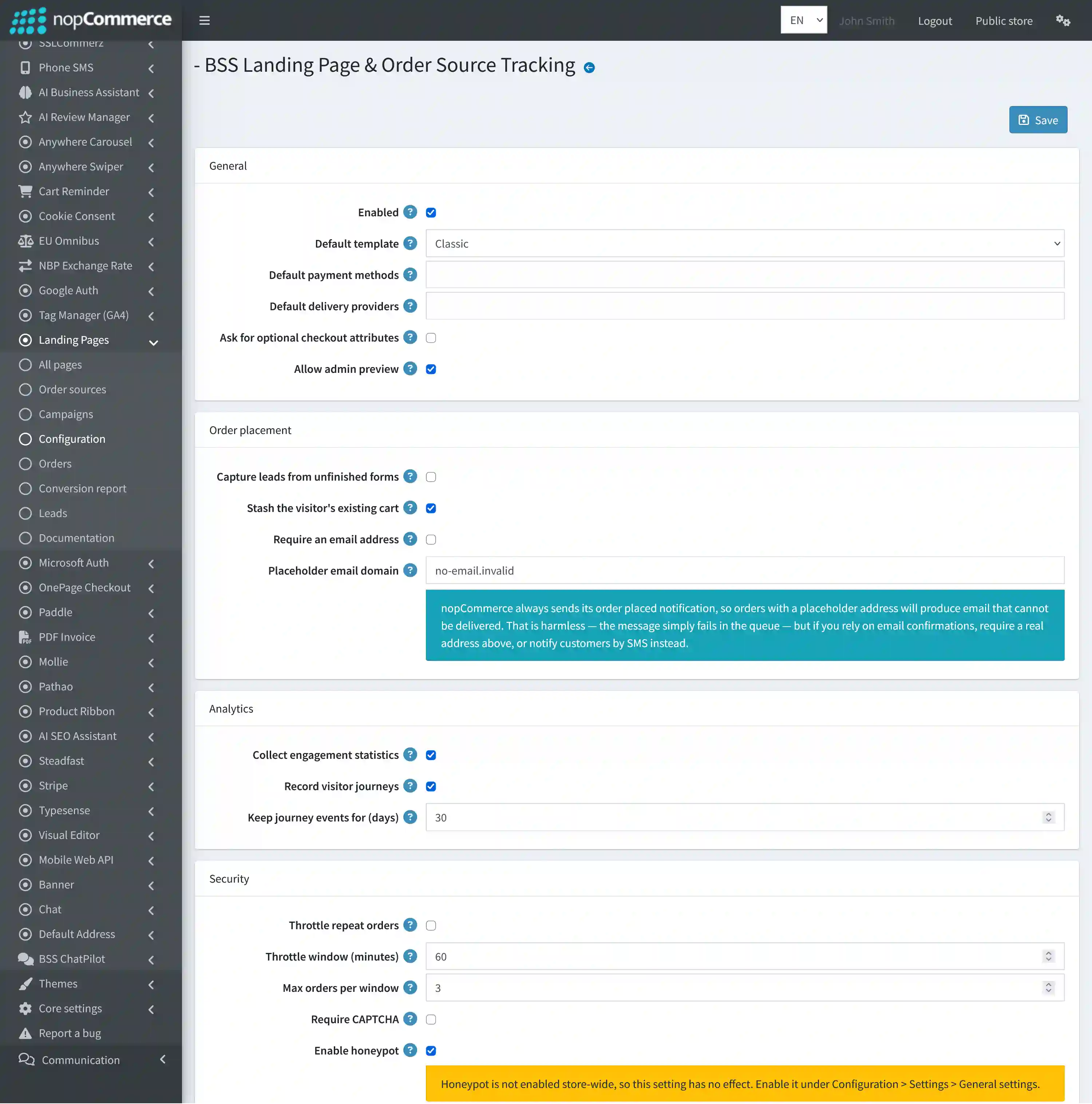
Enabled: Turns the landing page functionality on or off. When disabled, landing page URLs return a 404 page and cannot accept orders.
-
Default template: Sets the template preselected for new landing pages, such as Classic, Fashion, Luxury, Modern, or Gadget & Gear. Each page can use a different template.
-
Default payment methods: Sets the payment methods preselected for new landing pages, such as bKash, SSLCommerz, Stripe, PayPal Commerce, or Check / Money Order. Each page can override them.
-
Default delivery providers: Sets the default delivery providers for new landing pages. Leave empty to use all active providers; each page can override this.
-
Ask for optional checkout attributes: Shows optional checkout fields, such as gift wrapping. Required attributes are always shown, while disabling this helps keep the landing page shorter.
-
Allow admin preview: Lets authorized administrators preview an inactive landing page using ?preview=1, while regular visitors still receive a 404 page.
-
Capture leads from unfinished forms: Saves contact details from visitors who start the form but do not complete the order, allowing follow-up or retargeting from Landing Pages → Leads.
-
Stash the visitor's existing cart: Temporarily removes existing cart items so the landing page order contains only the advertised offer, then restores the original cart afterward.
-
Require an email address: Requires the shopper to enter a valid email. When disabled, a placeholder email can be generated from the phone number for flows such as cash on delivery.
-
Placeholder email domain: Sets the domain used for generated placeholder emails, for example no-email.invalid. Using .invalid prevents them from reaching a real mailbox.
-
Collect engagement statistics: Tracks anonymous landing page activity such as scrolling, clicks, form starts, coupon use, and time on page as daily totals.
-
Record visitor journeys: Records each visitor's anonymous step-by-step activity and can link that journey to a captured lead. Enable it only if it fits your privacy policy.
-
Keep journey events for (days): Sets how long visitor journey data is kept before automatic deletion, from 1 to 365 days.
-
Throttle repeat orders: Blocks excessive repeat orders from the same phone number or IP address, helping reduce spam and cash-on-delivery order flooding.
-
Throttle window (minutes): Sets the time period used to count repeat orders from the same phone number or IP address.
-
Max orders per window: Sets how many orders are allowed from the same phone number or IP address within the throttle window.
-
Require CAPTCHA: Requires CAPTCHA verification before an order is confirmed. CAPTCHA must also be configured in Configuration → Settings → General settings.
-
Enable honeypot: Uses a hidden form field to detect and reject automated submissions. Store-wide honeypot protection must also be enabled in General settings.
-
Save: After configuring the settings, click "Save" to apply your changes.
ORDER SOURCES
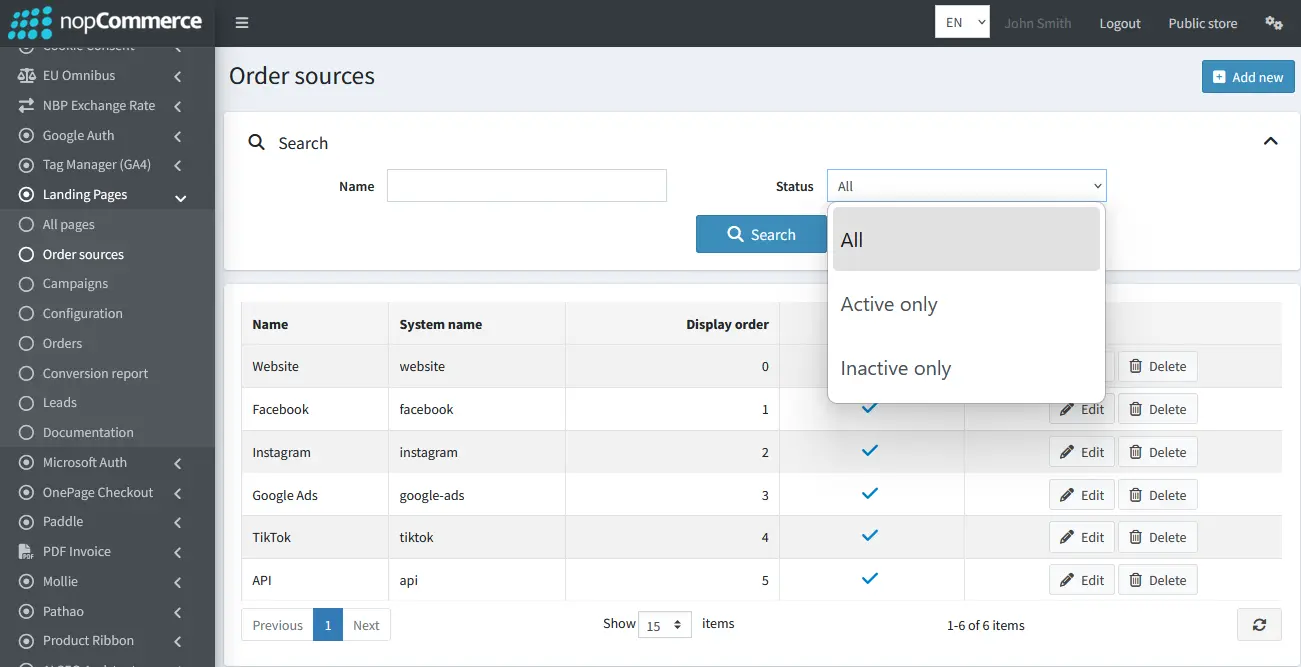
- Go to Admin → BSS → Plugins → Landing Pages → Order sources to manage the traffic and sales channels used for landing page order tracking.
-
Search and Filtering: Find order sources by Name and filter them by All, Active only, or Inactive only.
-
Order Source Overview: The table shows each source's Name, System name, Display order, and Active status. Default sources include channels such as Website, Facebook, Instagram, Google Ads, TikTok, and API.
-
Manage Order Sources: Use "Add new" to create a new source, or use the "Edit" and "Delete" actions to update or remove an existing one.
-
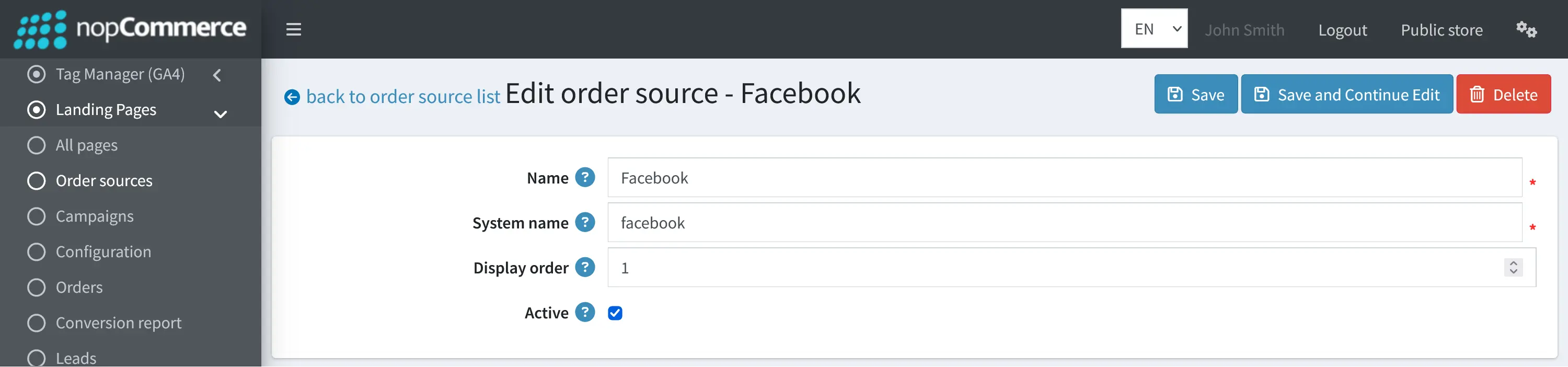
Name: Sets the source name administrators see, for example Facebook.
-
System name: Sets the unique source key used in reports and integrations, for example facebook. It is stored in lowercase and must be unique.
-
Display order: Controls where the source appears in dropdowns and grids. Lower values are shown first.
-
Active: Controls whether the source can be selected for new landing pages. Inactive sources remain attached to existing orders.
CAMPAIGNS
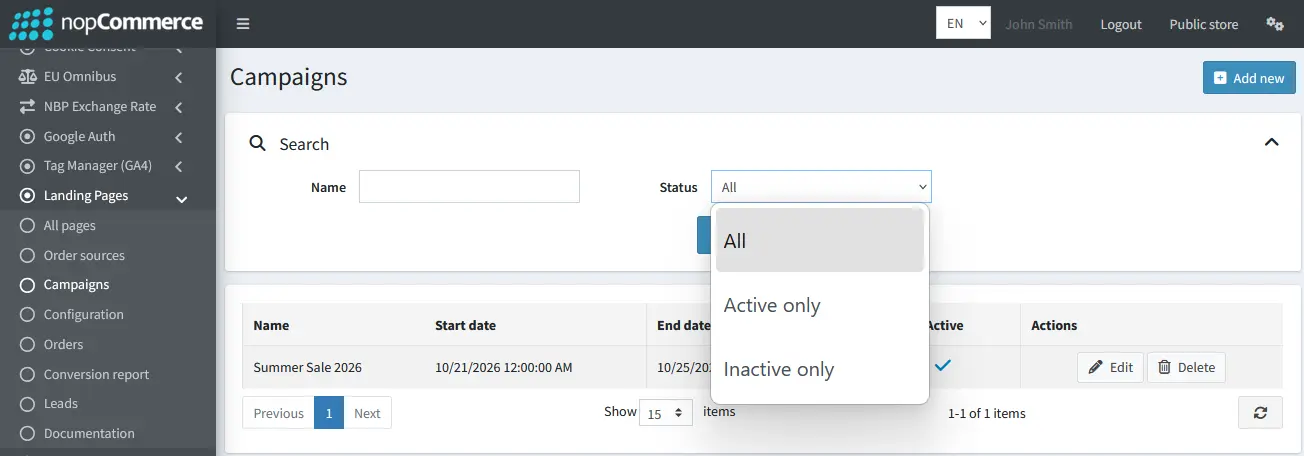
- Go to Admin → BSS → Plugins → Landing Pages → Campaigns to create and manage marketing campaigns used with landing pages.
-
Search and Filtering: Find campaigns by Name and filter them by All, Active only, or Inactive only.
-
Campaign Overview: The table shows each campaign's Name, Start date, End date, and Active status.
-
Manage Campaigns: Use "Add new" to create a campaign, or use "Edit" and "Delete" to update or remove an existing one.
-
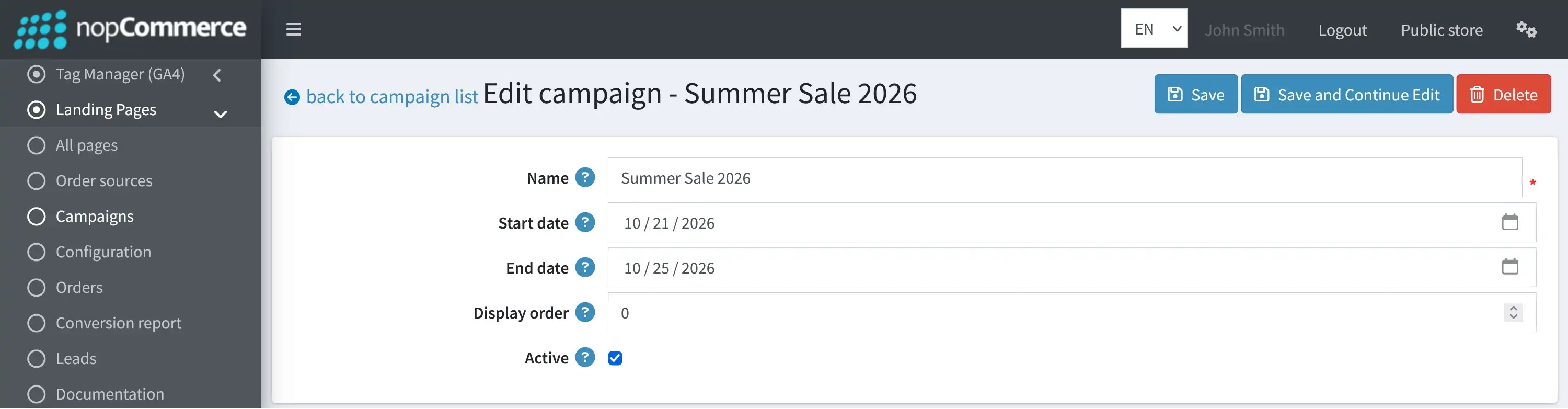
Name: Sets the campaign name administrators see, for example Summer Sale 2026.
-
Start date: Sets the campaign start date for reference and reporting. It does not automatically activate or deactivate landing pages.
-
End date: Sets the campaign end date for reference and reporting. It does not automatically activate or deactivate landing pages.
-
Display order: Controls where the campaign appears in dropdowns and grids. Lower values are shown first.
-
Active: Controls whether the campaign can be selected for new landing pages. Inactive campaigns remain attached to existing orders.
LANDING PAGES
-
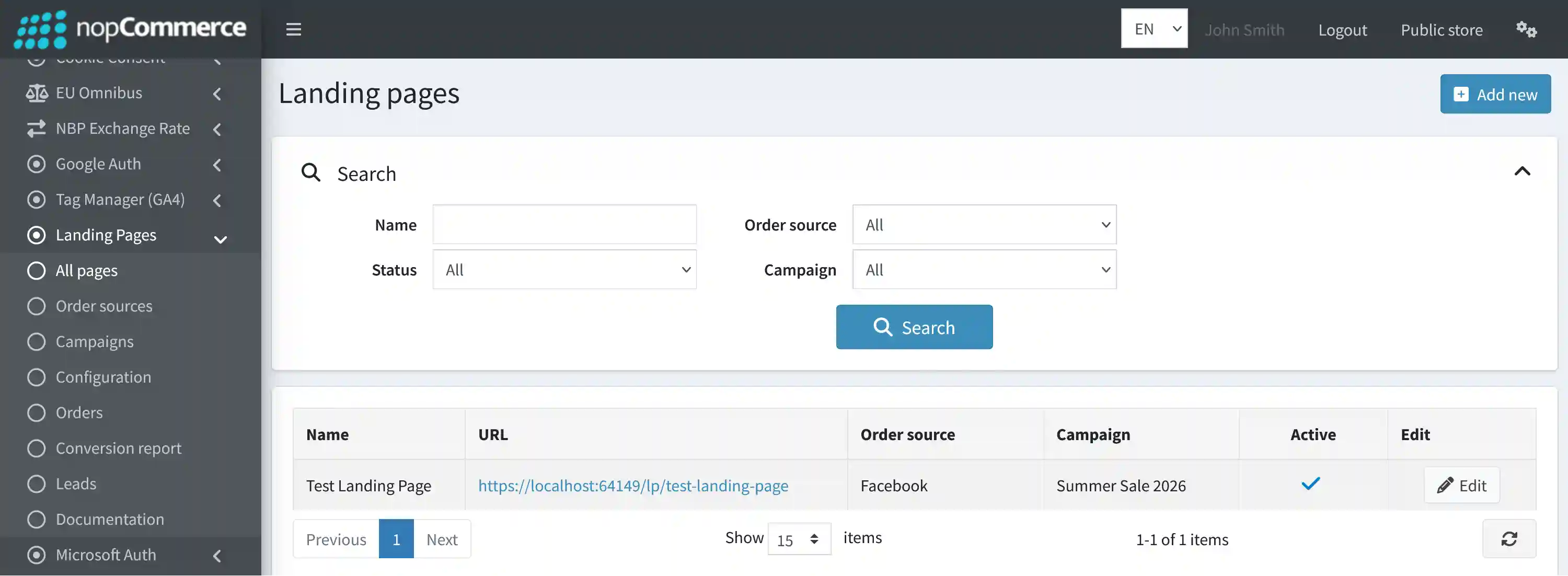
Go to Admin → BSS → Plugins → Landing Pages → All pages to view and manage your campaign landing pages.
-
Search and Filtering: Find landing pages by Name and filter them by Status, Order source, or Campaign.
-
Landing Page Overview: The table shows each page's Name, URL, Order source, Campaign, and Active status.
-
Direct Page Access: Use the landing page URL to open the storefront page directly.
-
Manage Landing Pages: Use "Add new" to create a landing page, or "Edit" to update an existing page and its checkout, campaign, tracking, or presentation settings.
-
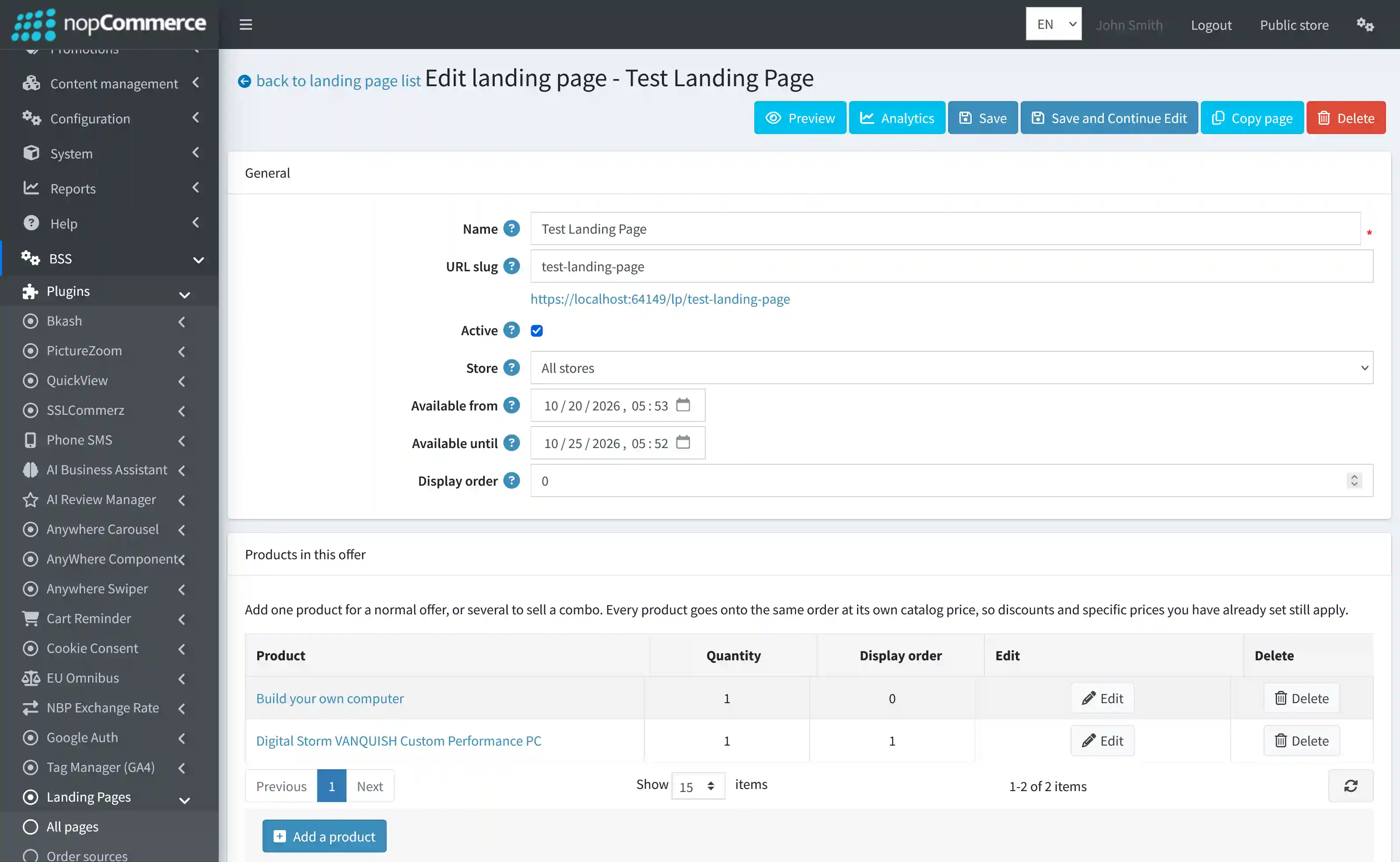
Name: Sets the admin-facing landing page name and is also used as the default page heading.
-
URL slug: Sets the unique URL segment after /lp/. Leave it blank to generate one from the page name; if the slug already exists, a number is added automatically.
-
Active: Controls whether visitors can access the landing page. Inactive pages return a 404 page, while administrators can still preview them.
-
Store: Makes the landing page available for all stores or limits it to a specific store in a multi-store setup.
-
Available from: Sets an optional start date and time for the landing page. Before this time, visitors receive a 404 page.
-
Available until: Sets an optional end date and time for the landing page. After this time, the page returns a 404 so an expired campaign cannot continue accepting orders.
-
Display order: Controls the page's position in the landing page list. Lower values are shown first.
-
Add a product: Add one product for a regular offer or multiple products for a bundled offer. All selected products are placed in the same order using their configured catalog prices, discounts, and specific prices.
-
Product quantity and display order: Use "Edit" to set the quantity and display position of each product. Use "Delete" to remove a product from the offer.
-
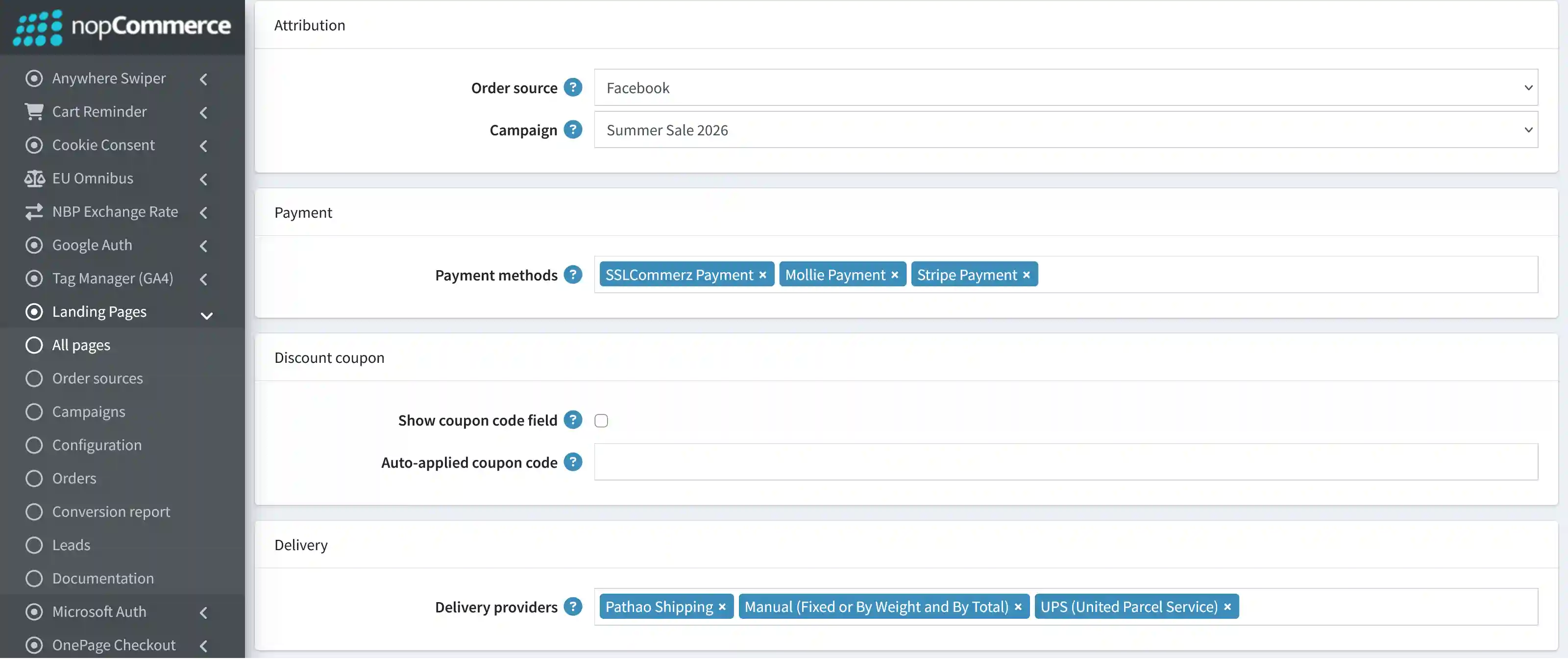
Order source: Selects the channel attributed to orders placed through this landing page, such as Website, Facebook, Instagram, Google Ads, TikTok, or API.
-
Campaign: Assigns a campaign to orders placed through this landing page for easier campaign tracking and reporting.
-
Payment methods: Selects the payment methods offered on this landing page, such as SSLCommerz, Mollie, Stripe, or PayPal Commerce. Leave empty to use the plugin-wide defaults; if both are empty, the page cannot accept orders.
-
Show coupon code field: Lets visitors enter a discount coupon code on the order form using nopCommerce's standard coupon validation.
-
Auto-applied coupon code: Automatically applies the configured coupon code for every visitor to this page. Leave empty for none; invalid or expired codes are ignored.
-
Delivery providers: Selects which delivery providers can be used on this landing page, such as Pathao Shipping, Manual (Fixed or By Weight and By Total), or UPS. Leave empty to use the plugin-wide default; if that is also empty, all active providers are quoted.
-
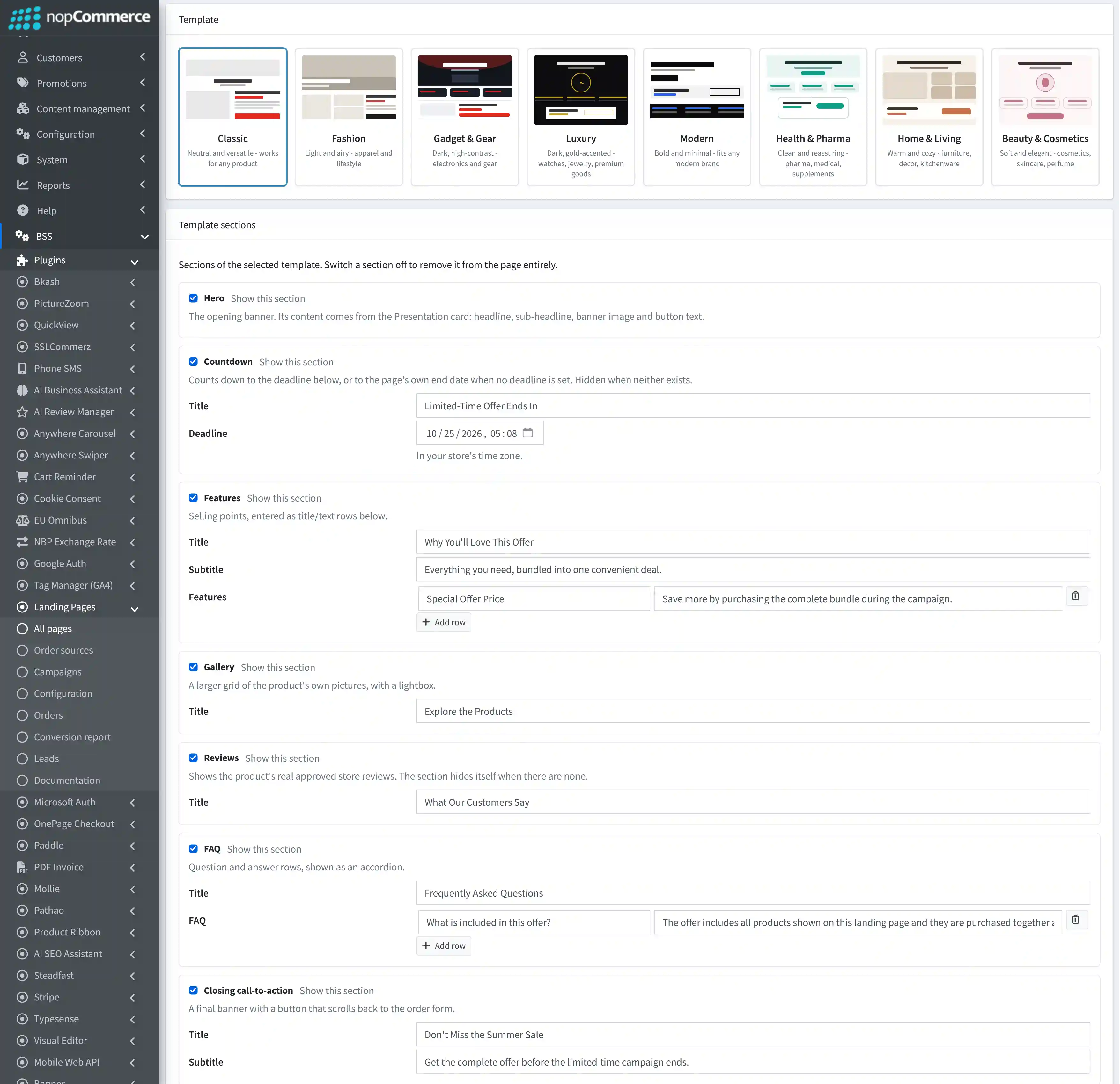
Template: Select the landing page design that best fits the offer, such as Classic, Fashion, Gadget & Gear, Luxury, Modern, or Health & Pharma.
-
Hero: Shows or hides the opening banner. Its content comes from the Presentation settings, including the headline, sub-headline, banner image, and button text.
-
Countdown: Shows a countdown timer to the configured Deadline, or to the landing page end date when no separate deadline is set. The section stays hidden if neither exists.
-
Features: Displays key selling points using a Title, Subtitle, and configurable feature rows.
-
Gallery: Displays a larger gallery of the product images with lightbox viewing. Use the Title field to label the section.
-
Reviews: Shows approved product reviews from the store. If no approved reviews are available, the section hides automatically.
-
FAQ: Displays question-and-answer rows in an accordion. Use the Title field and add as many FAQ rows as needed.
-
Closing call-to-action: Shows a final banner with a Title and Subtitle, plus a button that scrolls shoppers back to the order form.
-
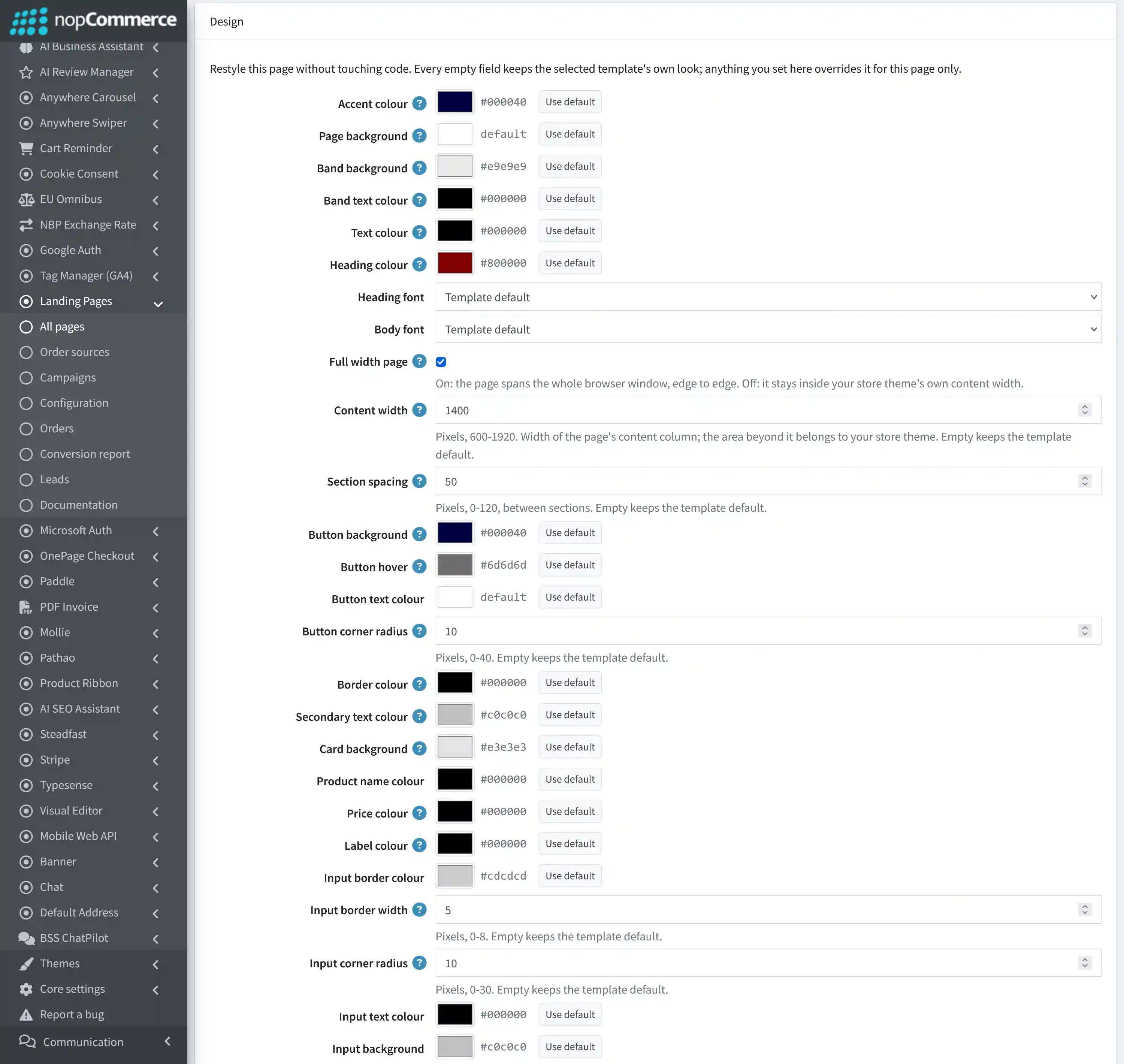
Accent colour: Sets the main highlight colour used for elements such as order buttons and page accents.
-
Page background: Sets the background colour of the entire landing page.
-
Band background & Band text colour: Customize the background and text colours of full-width sections such as the Hero and Closing call-to-action. Some templates may also display the Features section as a band.
-
Text colour & Heading colour: Set the body text colour and the colour used for page headlines and section titles outside the full-width bands.
-
Heading font & Body font: Choose separate fonts for headings and body content, or keep Template default.
-
Full width page: When enabled, the landing page spans the full browser width. When disabled, it stays within your store theme's normal content width.
-
Content width: Sets the landing page content width between 600 and 1920 pixels. Leave empty to use the template default.
-
Section spacing: Sets the spacing between page sections from 0 to 120 pixels. Leave empty to use the template default.
-
Button background, Button hover & Button text colour: Customize the appearance of order and call-to-action buttons. If the background is left empty, it follows the accent colour; an empty hover colour is generated automatically.
-
Button corner radius: Controls how rounded the buttons appear, from 0 to 40 pixels. Leave empty to keep the template default.
-
Border colour: Sets the colour used for borders and dividers throughout the landing page.
-
Secondary text colour: Sets the colour of supporting content such as sub-headlines, hints, and description text.
-
Card background: Sets the background colour of the card containing the product details and order form.
-
Product name colour, Price colour & Label colour: Customize the colours used for product names, prices, form labels, and product-option labels. An empty Price colour follows the accent colour.
-
Input border colour & Input border width: Customize the colour and thickness of form-field borders. Input border width supports values from 0 to 8 pixels.
-
Input corner radius: Controls how rounded the form fields appear, from 0 to 30 pixels.
-
Input text colour & Input background: Set the text and background colours used inside landing page form fields.
-
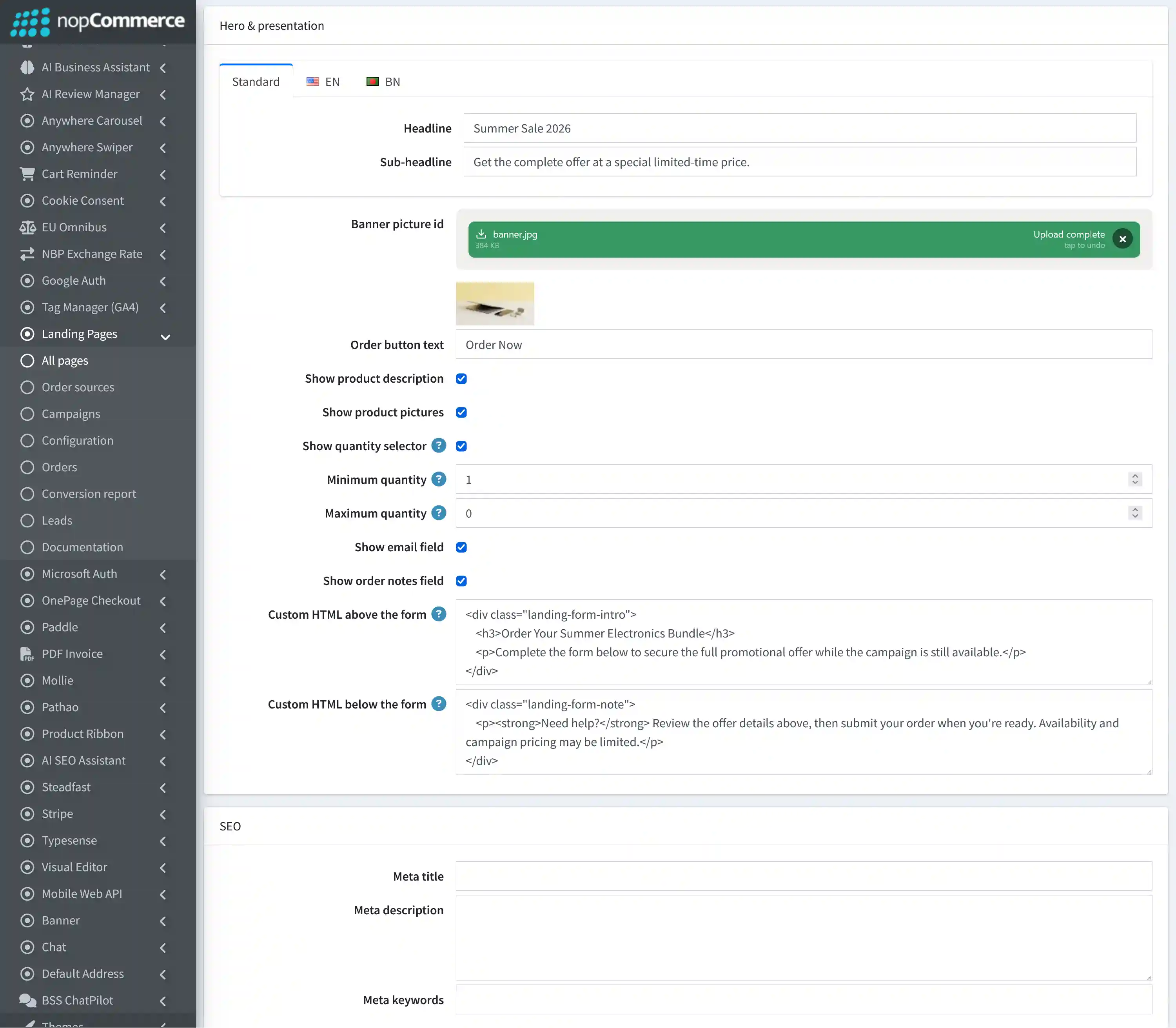
Headline & Sub-headline: Set the main hero message and supporting text shown at the top of the landing page. Localized versions can be entered for supported languages.
-
Banner picture id: Upload the hero banner image displayed in the opening section of the landing page.
-
Order button text: Sets the call-to-action text shown on the order button, for example Order Now. Localized versions can also be configured.
-
Show product description: Controls whether the product description is displayed on the landing page.
-
Show product pictures: Controls whether product images are shown in the main offer area.
-
Show quantity selector: Lets shoppers change product quantities on the landing page. When disabled, each product uses the quantity configured for the offer and cannot be changed by the shopper.
-
Minimum quantity: Sets the lowest quantity a shopper can order for each product line. The minimum allowed value is 1.
-
Maximum quantity: Sets the highest quantity allowed for each product line. Enter 0 for no maximum limit.
-
Show email field: Controls whether the email field appears in the landing page order form.
-
Show order notes field: Controls whether shoppers can add order notes before submitting the landing page order.
-
Custom HTML above the form: Add trusted custom HTML content directly above the order form, such as extra instructions, promotional text, or campaign messaging.
-
Custom HTML below the form: Add trusted custom HTML content directly below the order form, such as help text, notices, or additional purchase information.
-
Meta title: Sets the SEO title used by search engines and browser tabs for this landing page.
-
Meta description: Adds a concise SEO description that can help search engines understand the page and may appear in search results.
-
Meta keywords: Lets you enter keywords related to the landing page, offer, products, or campaign.

-
Save & Preview: Click "Save" or "Save and Continue Edit" to apply your landing page settings, then use "Preview" to review the page before sending traffic to it.
-
Analytics: Click "Analytics" to open the performance dashboard for the selected landing page and review its conversion and engagement activity.
-
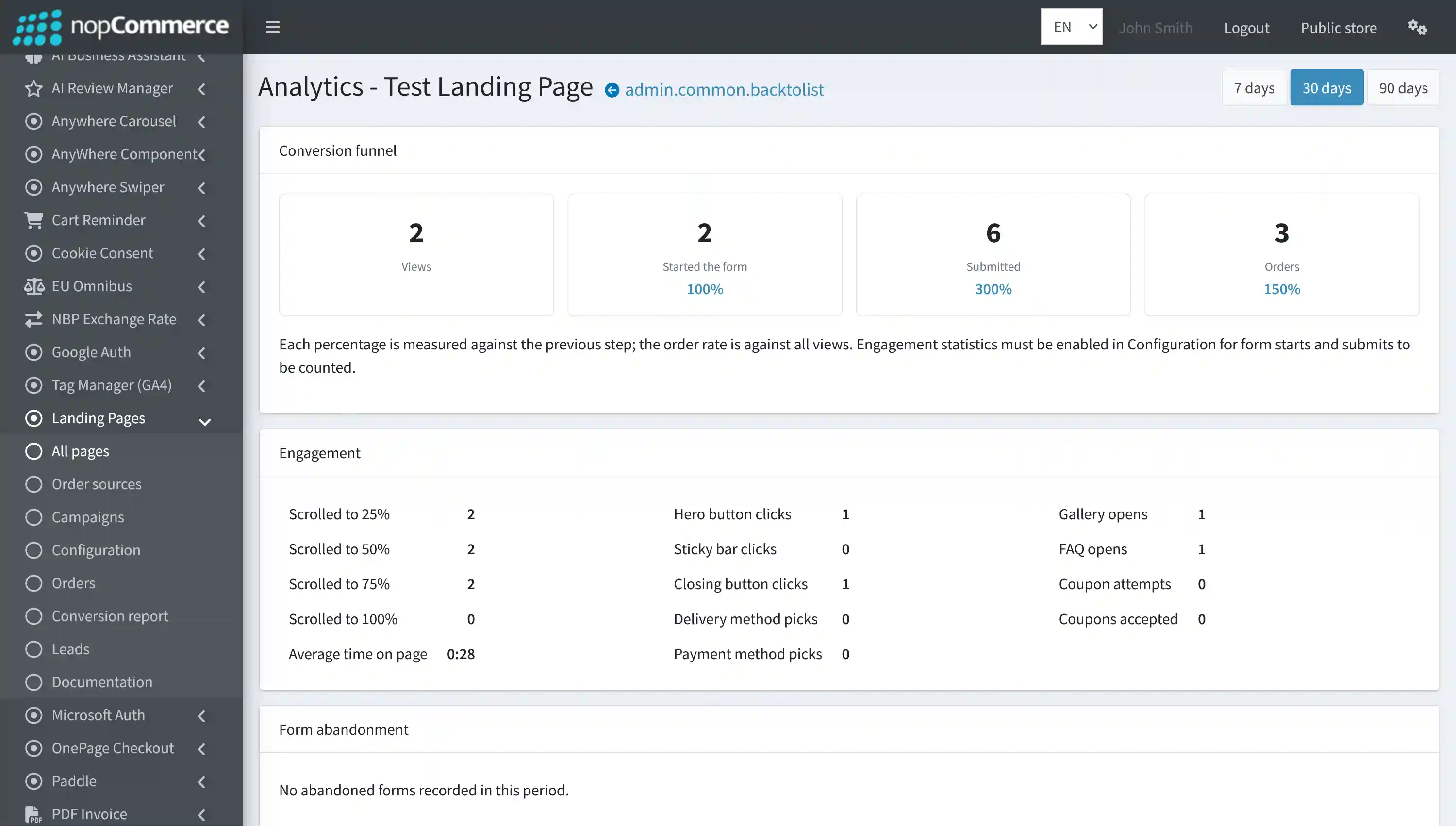
Date range: Switch between 7 days, 30 days, and 90 days to review recent landing page performance over different reporting periods.
-
Conversion funnel: Tracks the main purchase journey through Views, Started the form, Submitted, and Orders, with conversion percentages shown between stages.
-
Engagement: Shows how visitors interact with the page, including scroll depth, average time on page, hero and closing button clicks, gallery and FAQ opens, coupon activity, and delivery/payment selections.
-
Form abandonment: Highlights visitors who started the landing page order form but did not complete the order during the selected reporting period.
-
Analytics requirement: Collect engagement statistics must be enabled in Configuration for form starts, submissions, and detailed engagement activity to be recorded.
LANDING PAGE LEADS
-
Go to Admin → BSS → Plugins → Landing Pages → Leads to review visitors who entered contact information but did not necessarily complete an order.
-
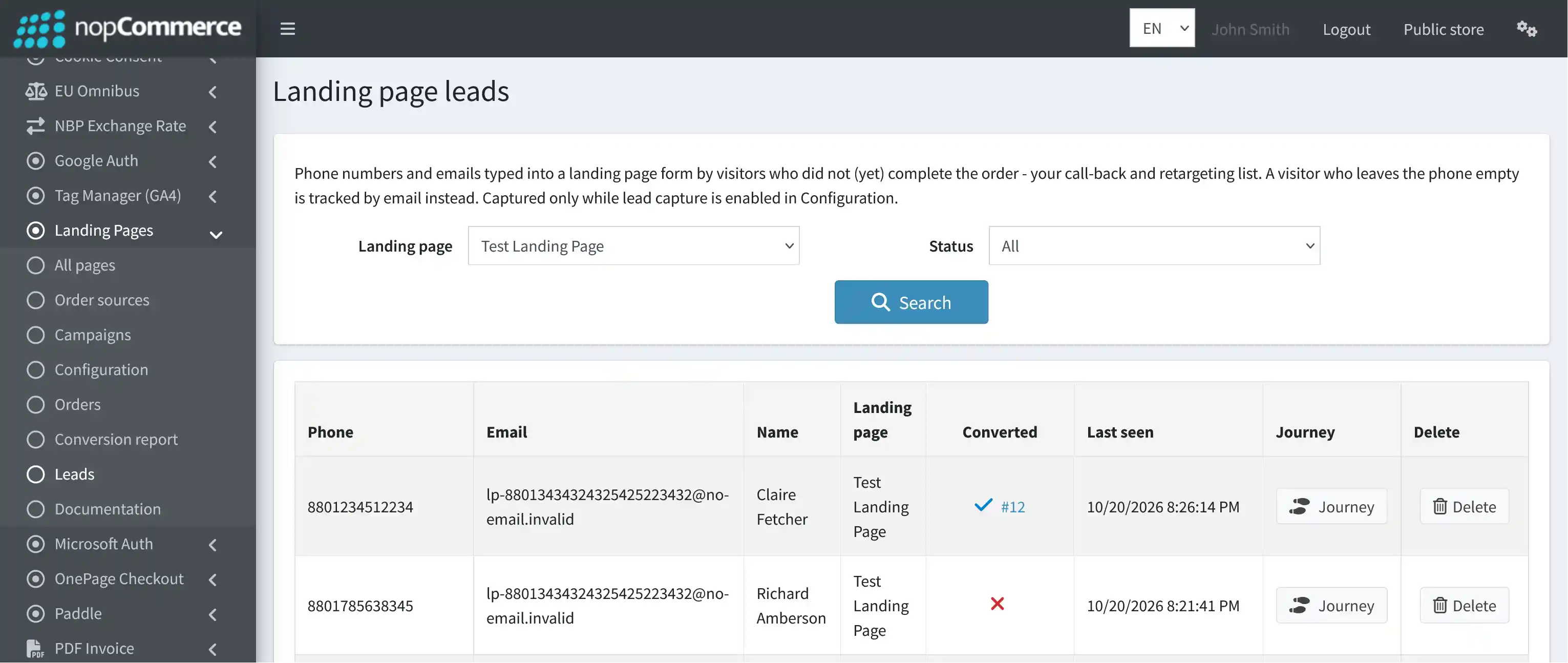
Lead Capture: Stores the phone number or email entered by visitors who start the landing page form before completing an order. If a lead later places an order, the record remains available and is marked as converted. Lead capture must be enabled in Configuration.
-
Search and Filtering: Filter leads by Landing page and Status to focus on the records you need.
-
Lead Overview: The table shows each lead's Phone, Email, Name, Landing page, Converted status, and Last seen time.
-
Converted Status: Shows whether the captured lead later completed an order. When converted, the related order number is also available for reference.
-
Delete: Use "Delete" to remove a lead record when it is no longer needed.
-
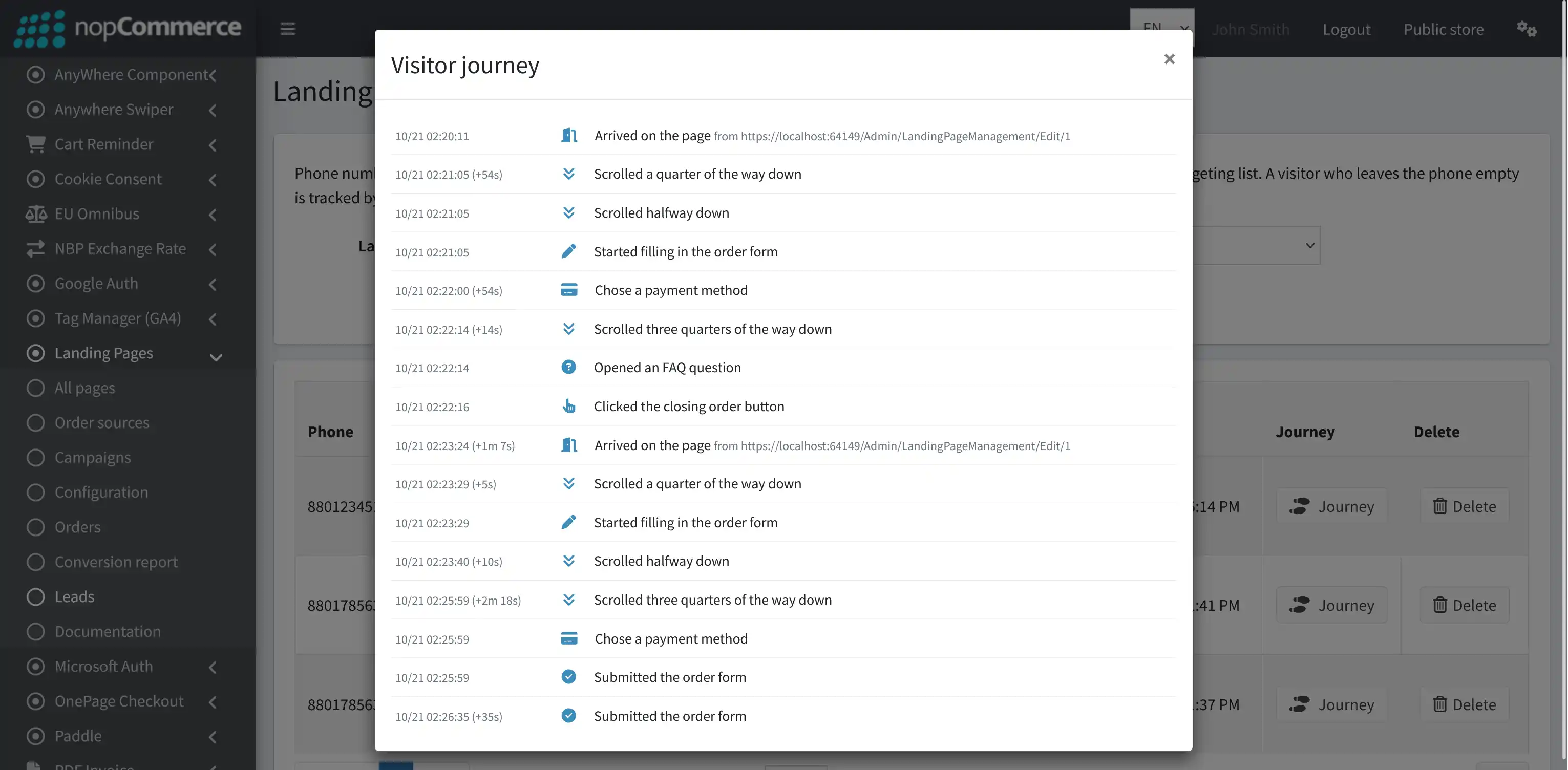
Journey: Use "Journey" to review Visitor journey - visitor's recorded activity on the landing page when visitor journey tracking is enabled.
-
Page activity: Tracks actions such as arriving on the page, scrolling to different depths, opening FAQs, and clicking call-to-action buttons.
-
Order form activity: Records key checkout steps such as starting the order form, choosing a payment method, and submitting the order form.
-
Time between actions: Shows the elapsed time between recorded events, helping administrators understand how the visitor moved through the landing page.
LANDING PAGE ORDERS
-
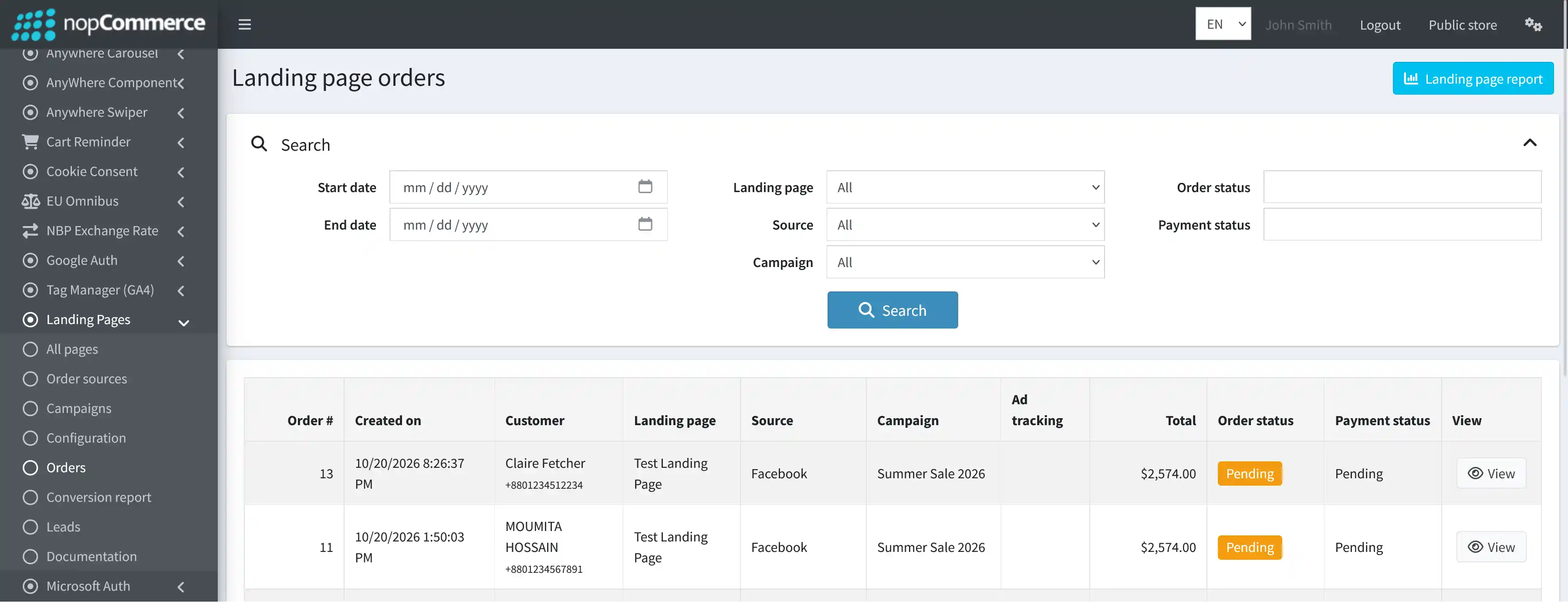
Go to Admin → BSS → Plugins → Landing Pages → Orders to review orders placed through landing pages and track their campaign attribution.
-
Search and Filtering: Filter landing page orders by Start date, End date, Landing page, Source, Campaign, Order status, and Payment status. Order status options include Pending, Processing, Complete, and Cancelled, while payment status options include Pending, Authorized, Paid, Partially refunded, Refunded, and Voided.
-
Order Overview: The table shows each order's Order #, Created on, Customer, Landing page, Source, Campaign, Ad tracking, Total, Order status, and Payment status.
-
Source & Campaign Attribution: Shows which landing page, traffic source, and campaign were attributed to each completed order.
-
Ad Tracking: Displays captured advertising and campaign parameters when available, helping identify which tracked ad visit led to the order.
-
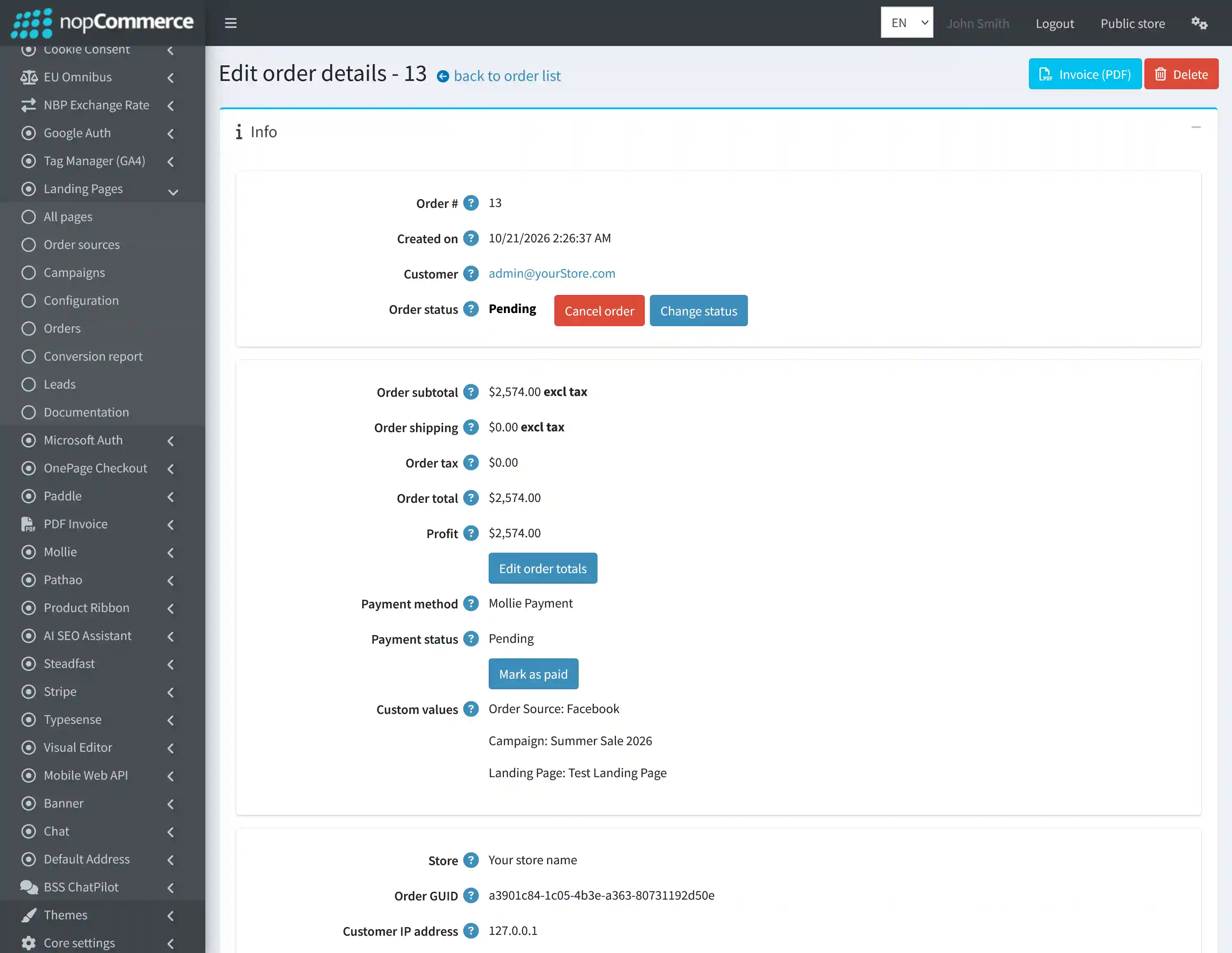
View Order: Click "View" to open the corresponding nopCommerce order and review or edit its complete details.
LANDING PAGE CONVERSION REPORT
-
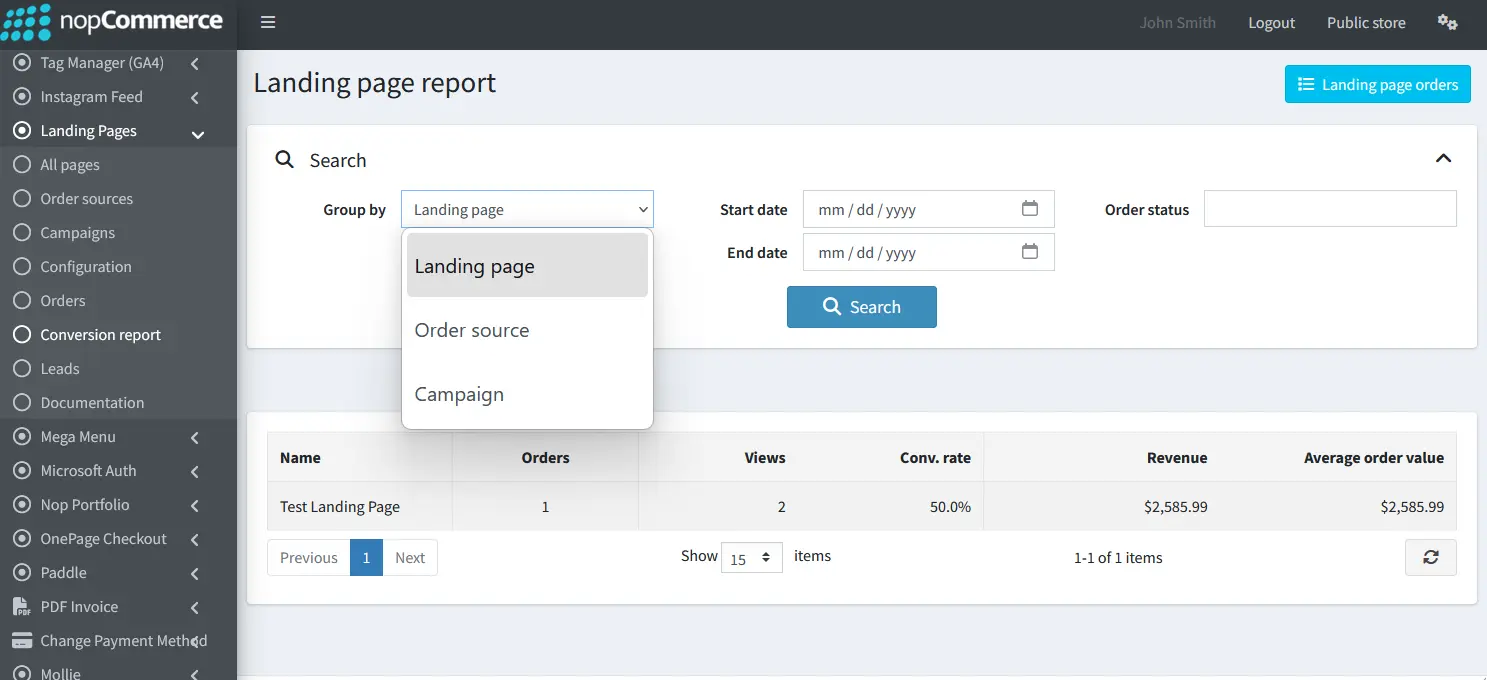
Go to Admin → BSS → Plugins → Landing Pages → Conversion report to compare landing page performance and attributed sales.
-
Group by: Organize the report by Landing page, Order source, or Campaign to compare performance from different perspectives.
-
Search and Filtering: Filter report data by Start date, End date, and Order status to focus on the period and orders you want to analyze.
-
Conversion Overview: The report shows Name, Orders, Views, Conversion rate, Revenue, and Average order value for each grouped result.
-
Conversion rate: Shows the percentage of landing page views that resulted in an order, helping identify which pages, sources, or campaigns convert most effectively.
-
Revenue & Average order value: Shows the total revenue generated and the average value of orders for the selected reporting group.
-
Landing page orders: Click "Landing page orders" to return to the detailed list of individual orders placed through landing pages.
PUBLIC VIEW
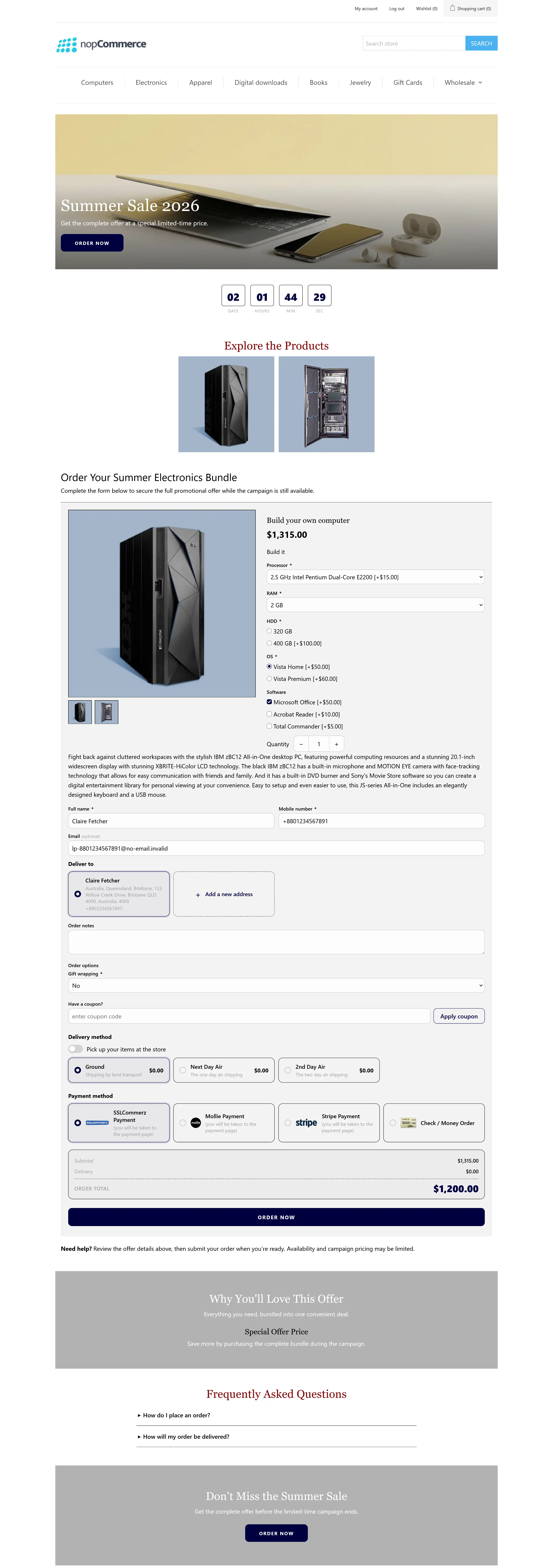
FEATURES
-
Campaign Landing Pages: Create dedicated landing pages for advertised offers, including single-product or multi-product bundle campaigns.
-
One-Page Ordering: Let shoppers review the offer, enter checkout details, choose payment and delivery options, and place the order from the same landing page.
-
Multiple Landing Page Templates: Choose from ready-made layouts for different industries and campaign styles, then customize each page individually.
-
Custom Page Design: Adjust colours, fonts, spacing, buttons, cards, form fields, backgrounds, and page width without editing code.
-
Flexible Content Sections: Show or hide sections such as Hero, Countdown, Features, Gallery, Reviews, FAQ, and Closing call-to-action based on the campaign.
-
Product Bundle Offers: Add one or multiple products to the same landing page offer while preserving configured catalog prices, discounts, and product quantities.
-
Payment & Delivery Control: Choose which payment methods and delivery providers are available on each landing page, with support for plugin-wide defaults.
-
Coupon Support: Allow shoppers to enter coupon codes or automatically apply a configured discount coupon to every visitor of the page.
-
Order Source & Campaign Attribution: Assign an Order Source and Campaign to each landing page so orders can be traced back to the marketing activity that generated them.
-
Ad Tracking Data: Capture advertising parameters such as UTM values, gclid, fbclid, and ttclid with landing page orders when available.
-
Lead Capture: Save contact details from visitors who begin the order form, keep converted and unconverted leads visible, and use the list for follow-up or retargeting.
-
Visitor Journey Tracking: Review step-by-step visitor activity such as page arrival, scrolling, form starts, payment selection, FAQ opens, and order-form submission.
-
Landing Page Analytics: Monitor views, form starts, submissions, orders, scroll depth, button clicks, time on page, and other engagement activity over 7, 30, or 90 days.
-
Conversion Reporting: Compare performance by Landing page, Order source, or Campaign using orders, views, conversion rate, revenue, and average order value.
-
Landing Page Order Management: Review attributed orders with customer, campaign, source, tracking, payment, and order-status details, then open the full nopCommerce order when needed.
-
Order Protection: Use repeat-order throttling, CAPTCHA, and honeypot protection to help reduce automated, fraudulent, or repeated landing page orders.
-
Multi-Store Support: Make a landing page available across all stores or restrict it to a specific store in a multi-store nopCommerce setup.
-
SEO Controls: Configure the Meta title, Meta description, and Meta keywords for individual landing pages.


